How To Make Cloud Photo Backups Safer
Practical tips for backing up photos and videos privately, including encryption, account checks, storage habits, and restore planning.
“A safer cloud backup is not just online. It is encrypted, current, and restorable by the person who owns it.”
By Sixbytes
Cloud backup is useful because phones are fragile. They can be lost, damaged, stolen, wiped, or replaced without warning. But private photos and videos need more than a second copy. They need a safer copy.
The safest backup routine protects the content, keeps the backup current, and gives you a clear way to restore later.
That last part is easy to underestimate. Many people think a backup is working because a setting is turned on. A safer approach is to treat backup as a small system: the app needs permission to find the files, the device needs time and network access, the account needs to be correct, encryption needs to be understood, and restore needs to be possible when the original phone is gone.
Cloud backup is not automatically unsafe. It becomes risky when the files are stored without enough protection, when the account is weak, or when nobody checks whether restore actually works. The goal is not to avoid convenience. The goal is to make convenience private enough for the kind of media being protected.
Use Encryption For Sensitive Media
Encryption makes a backup safer because it protects the data itself. Without encryption, cloud storage may still rely mostly on account access and storage permissions. With encryption, the stored file is unreadable without the right key.
For private photos and videos, that difference matters. Account security is important, but encrypted storage adds a deeper boundary around the file contents.
This is especially important for media because photos and videos often contain more than the subject. They can reveal locations, faces, documents, rooms, screens, voices, and habits. A single file may carry personal details you did not notice when you captured it. Encryption helps reduce the damage if storage access, device access, or account access is ever more complicated than expected.
If your app uses an Encryption Password, treat that password as part of the backup. The encrypted files and the password belong together in your recovery plan. Store the password in a trusted password manager or another secure place you can reach from a new device. Do not send it through support channels or keep it only in a screenshot.
Confirm The Right Account
Many restore problems start with account confusion. A person may have more than one email address, a family device, an old account, or a backup created years ago. Before trusting a backup, confirm which account contains it.
This is especially important before switching phones. Sign in, check that recent media appears, and make sure your password manager or recovery record is available on the new device.
If you manage family devices, work devices, or multiple Apple or Google accounts, write down the account logic somewhere private. It does not need to include passwords. A simple note in a password manager record can say which email is connected to the private media backup, which device was last used, and whether an Encryption Password is required.
Account confusion can be subtle. You may sign in successfully and still see an empty library because you used the wrong email. You may see old files but not recent ones because a different device was backing up to a different account. Before deleting anything, confirm that you are looking at the right backup, not merely a backup.
Let The First Backup Finish
The first backup may take time. Videos are large, older libraries can contain thousands of files, and network speed matters. Use reliable Wi-Fi, keep the device charged, and avoid interrupting the app while it is catching up.
After the first backup is complete, ongoing backups are usually easier because only new or changed items need attention.
During the first backup, avoid measuring success only by speed. A slower but stable backup is usually better than repeatedly stopping and restarting. If the device gets hot, loses Wi-Fi, runs low on battery, or is forced to close the app, progress may pause. Give the app the conditions it needs: power, Wi-Fi, time, and permission to keep working.
Videos deserve extra patience. A few long videos can account for most of the storage and upload time in a library. If your app shows file counts, size, or status, check whether videos are still pending before assuming the backup is done.
Review Storage And Quality
A safer backup also needs enough storage. If storage is nearly full, new files may stop uploading or older backups may not complete. Review storage warnings before travel, before major events, and before device upgrades.
Quality settings matter too. Some services store optimized copies, while others preserve originals. For personal memories and important records, know whether your backup keeps the original file, metadata, and video quality you expect. If a file may be needed as evidence, documentation, or a high-quality memory, an incomplete or heavily compressed copy may not be enough.
Protect The Account Around The Backup
Even with encryption, the account still matters. Use a strong account password, keep access to the recovery email, and be careful with verification codes. Avoid staying signed in on shared devices. If a device is lost, review active sessions and revoke access where possible.
Think of the account as the map to the backup and the Encryption Password as the key to the protected contents. You need both in good order. Losing the map is confusing. Losing the key can make encrypted files impossible to unlock.
Check Before Deleting
Never delete original files just because backup was turned on. Check that the backup is complete, that recent files are visible, and that you know how to restore. If encryption is involved, confirm that your Encryption Password is stored somewhere secure.
Before a big cleanup, do a small restore check. You do not need to download the entire library every time. Just confirm that the app can see the backup, that recent items are present, and that you know what would happen on a new device. If anything looks unclear, pause the deletion until the backup status makes sense.
This habit is especially useful after vacations, school events, inspections, client work, family gatherings, or weeks with lots of video. Those are exactly the moments when files are hardest to recreate and easiest to delete too early.
A good cloud backup should feel quiet most days. The work is in setting it up carefully so it is ready when life becomes inconvenient.
Frequently Asked Questions
Protect your private photos and videos
Download Safety Photo+Video for a private media vault with flexible locks and optional zero-knowledge encrypted backup.
Available for iPhone, iPad, and Android.
Related Articles
Private Photo Backups: A Practical Starting Guide
A practical guide to building a private photo and video backup routine that protects sensitive media, stays current automatically, and gives you a clear restore plan before a device is lost, damaged, or replaced.
Read article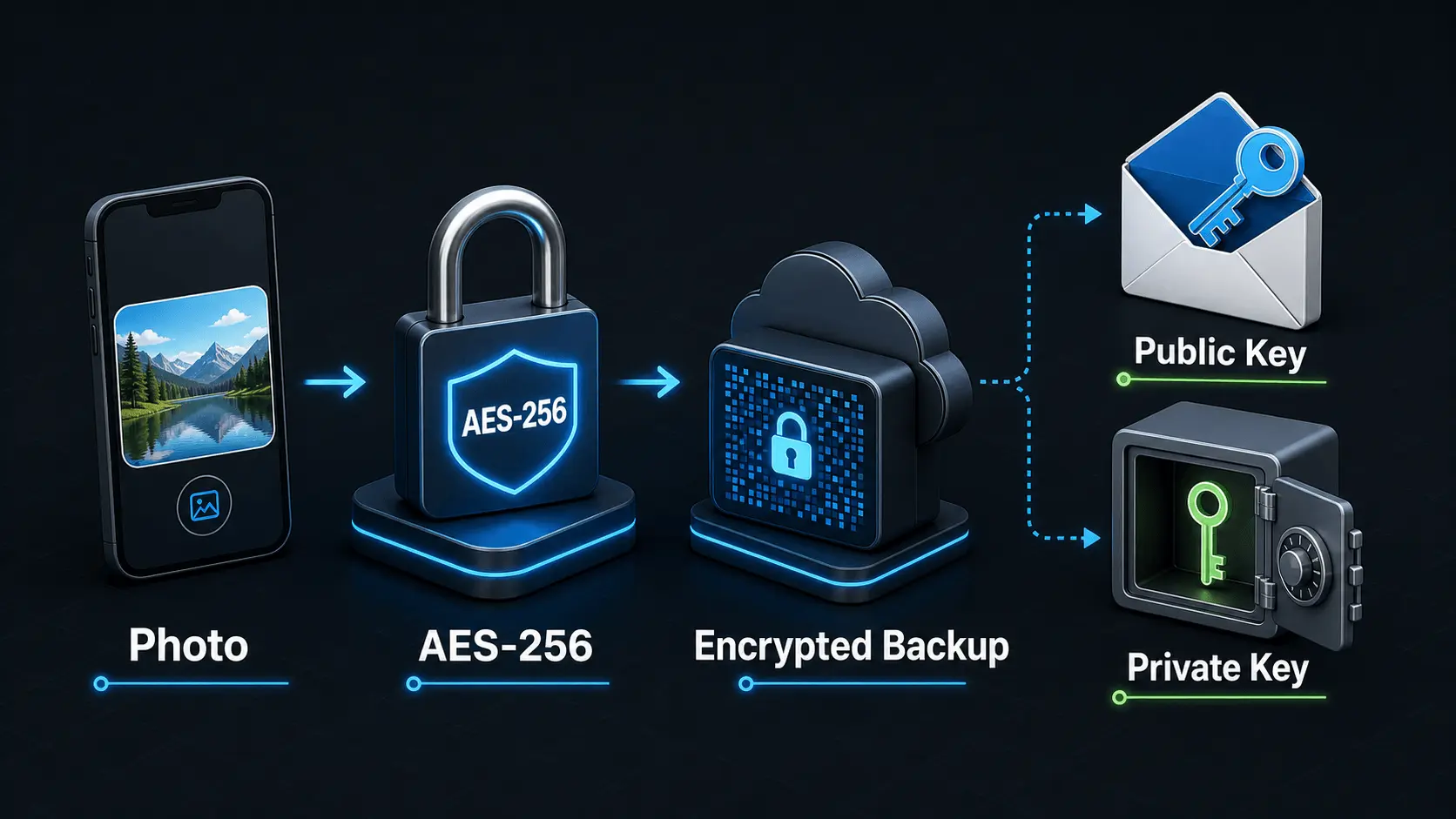
How Does Encryption Work?
A simple explanation of how encryption protects private photos and videos, how AES-256 works in Safety Photo+Video, and how encryption passwords, public keys, and private keys fit together.
Read article